Are you looking to automate the processing of audio files? Whether you need to transcribe meeting recordings, convert voice notes, or generate subtitles for video content, doing it manually is time-consuming.
In this guide, we will show you how to use a custom n8n Workflow Template to automate the entire transcription process using Online Speech to Text Cloud.
Why Use This Integration?
We built the Online Speech to Text Cloud API to provide enterprise-grade transcription with a focus on privacy and accuracy. By integrating this into n8n, you can:
- Transcribe Instantly: 99%+ accuracy for clear audio.
- Automate Workflows: Trigger transcription from URLs, email attachments, or cloud storage.
- Privacy First: Fully GDPR compliant. Data is processed in German data centers and deleted after 24 hours.
- Multilingual: Supports over 30 languages with auto-detection.
Prerequisites
Before you begin, ensure you have the following:
- An n8n Instance: (Cloud or self-hosted).
- An API Key: Sign up at Online Speech to Text Cloud to get your API key (starts with
stt_live_...). - The n8n Node: Ensure the
n8n-nodes-speech-to-text-cloudpackage is installed in your n8n environment.
Step 1: Import the Workflow
We have prepared a ready-to-use workflow that handles the download, transcription, and result retrieval for you.
- Click the link below to import the template directly into your n8n instance:
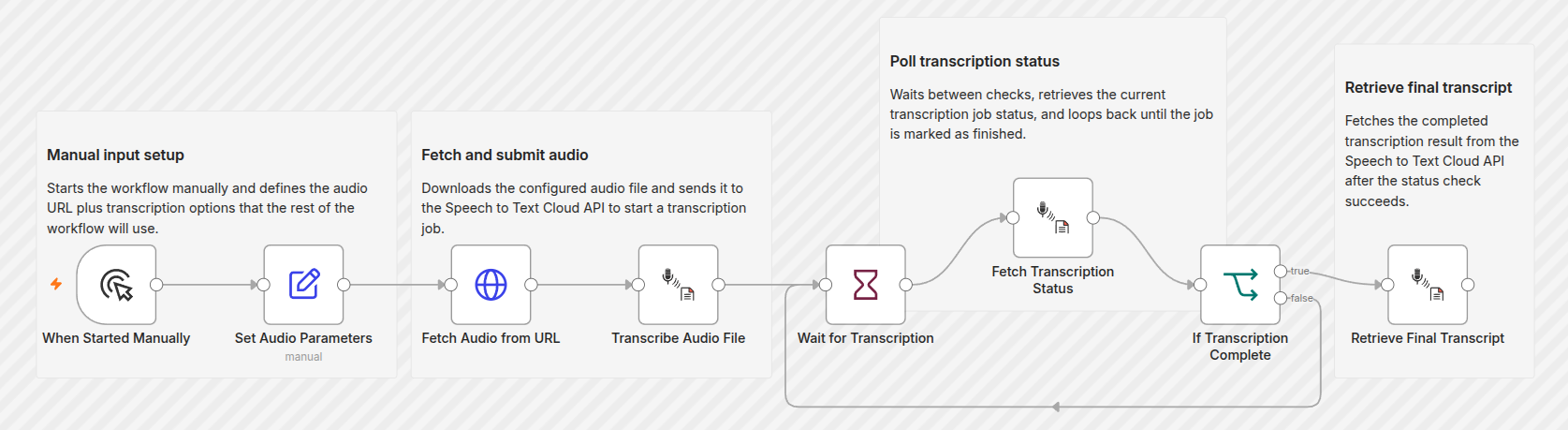
👉 Import Workflow: Transcribe Audio Files - Once imported, you will see a workflow containing the following nodes:
- Set Audio Parameters (Configuration)
- Fetch Audio from URL (HTTP Request)
- Transcribe Audio File (Custom Node)
- Wait for Transcription (Polling Loop)
- Retrieve Final Transcript (Output)
Step 2: Configure Credentials
The workflow uses the custom node to communicate with our API. You need to attach your API key.
- Click on the Transcribe Audio File node (or any node labeled „Online Speech to Text Cloud“).
- In the Credentials section, click Add Credential and select Online Speech to Text Cloud API.
- Enter your API Key (e.g.,
stt_live_...) and save.- Note: The node automatically handles the
x-api-keyheader authentication.
- Note: The node automatically handles the
Step 3: Set Your Input Parameters
The workflow begins with a Set Audio Parameters node. This is where you define what you want to transcribe.
- Click the Set Audio Parameters node.
- Update the following fields:
- audio_url: Paste the direct URL to your audio file (MP3, WAV, M4A, etc.).
- language:
- Leave as
yyyfor automatic language detection. - Or enter a code like
en,de,fr,es, etc.
- Leave as
- output_format: Select
txt,srt,docx, orpdf.
Step 4: Execute the Workflow
Now you are ready to test the automation.
- Click the Execute Workflow button in the top right corner.
- Watch the flow:
- The workflow will download the audio file.
- It will send the file to the API for processing.
- It will enter a Polling Loop (Wait -> If -> Fetch Status) until the job is finished.
- Finally, it will retrieve the text result in the Retrieve Final Transcript node.
How the Workflow Works
For those interested in the technical details, here is a breakdown of the logic used in the template:
- Download: An HTTP Request node fetches the audio file from the provided URL.
- Transcribe: The custom node sends the file as
multipart/form-datato the/api_transcribeendpoint. - Polling: Since transcription is asynchronous, the workflow uses a Wait node combined with an If node. It checks the status every 10 seconds until the job returns
status: 'finished'. - Result: Once finished, a final API call fetches the transcript text.
Troubleshooting
If you encounter issues, check the following:
- „Missing boundary in multipart“: Ensure the HTTP Request node is returning binary data (File format) and not text.
- Timeouts: Large audio files take longer to process. If the workflow times out, increase the „Wait“ duration in the Wait for Transcription node.
- API Key Errors: Verify your API key starts with
stt_live_and is active.
For full documentation on our API capabilities, translation features, and privacy policy, visit:
🔗 https://www.speech-to-text.cloud/api-documentation/